
TL;DR
- Idea Pins no longer exist. Every Pin is now an image Pin or a video Pin, and any Pin can carry a link.
- Don’t port every Reel. Tutorials, recipes, product demos and before/afters move well. Trend-audio and lip-sync Reels usually don’t.
- Start with a clean, watermark-free file. Your editor’s export is best; a no-login Reels downloader is the fallback for your own published Reels.
- Auto-publish is a fine floor. Manual uploads with a new cover, keyword-led title and your own link are where the upside is.
- Organic video Pins run 4 seconds to 5 minutes. The 15-minute figure belongs to ads.
A Reel’s views usually flatten within days. A Pin works differently, because people find it through search, and search doesn’t care what week you posted. That’s the whole case for taking the time to repurpose Instagram Reels to Pinterest instead of letting them sink.
Picture a 40-second overnight oats Reel. On Instagram, it gets its moment and disappears under next week’s posts. On Pinterest, someone typing “make-ahead breakfast” in January can still land on it. Same video, very different shelf life.
The audience is there. Pinterest reported 640 million monthly active users in Q2 2026, up 11% year over year, and its Q2 2025 results put Gen Z at over half its users. Below you’ll get two methods, a filter for which Reels deserve the move, and a way to tell whether any of it worked.
Reels and Video Pins Aren’t the Same Post
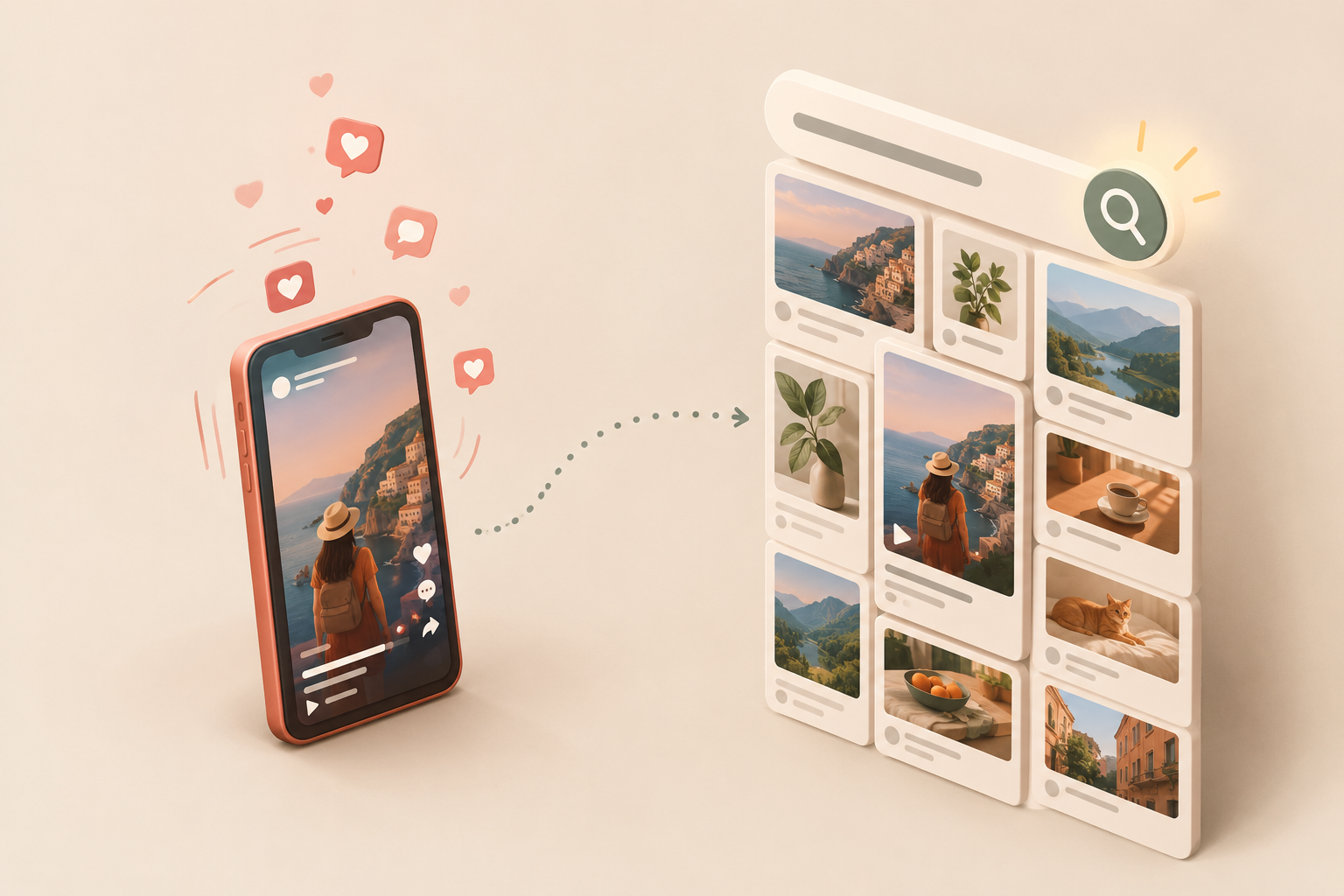
Instagram pushes content through a feed. Pinterest behaves more like a search engine, which means your caption stops being a vibe and starts being a keyword field.
One piece of stale advice needs to go right now. Idea Pins were folded into standard Pins in 2023, so every Pin is now either an image Pin or a video Pin, and all Pins can carry a link (per Pinterest’s Business Community announcements). If a guide tells you to post your Reel as an Idea Pin, it’s out of date. Close the tab.
Set Up Three Things Before You Move a Single Reel
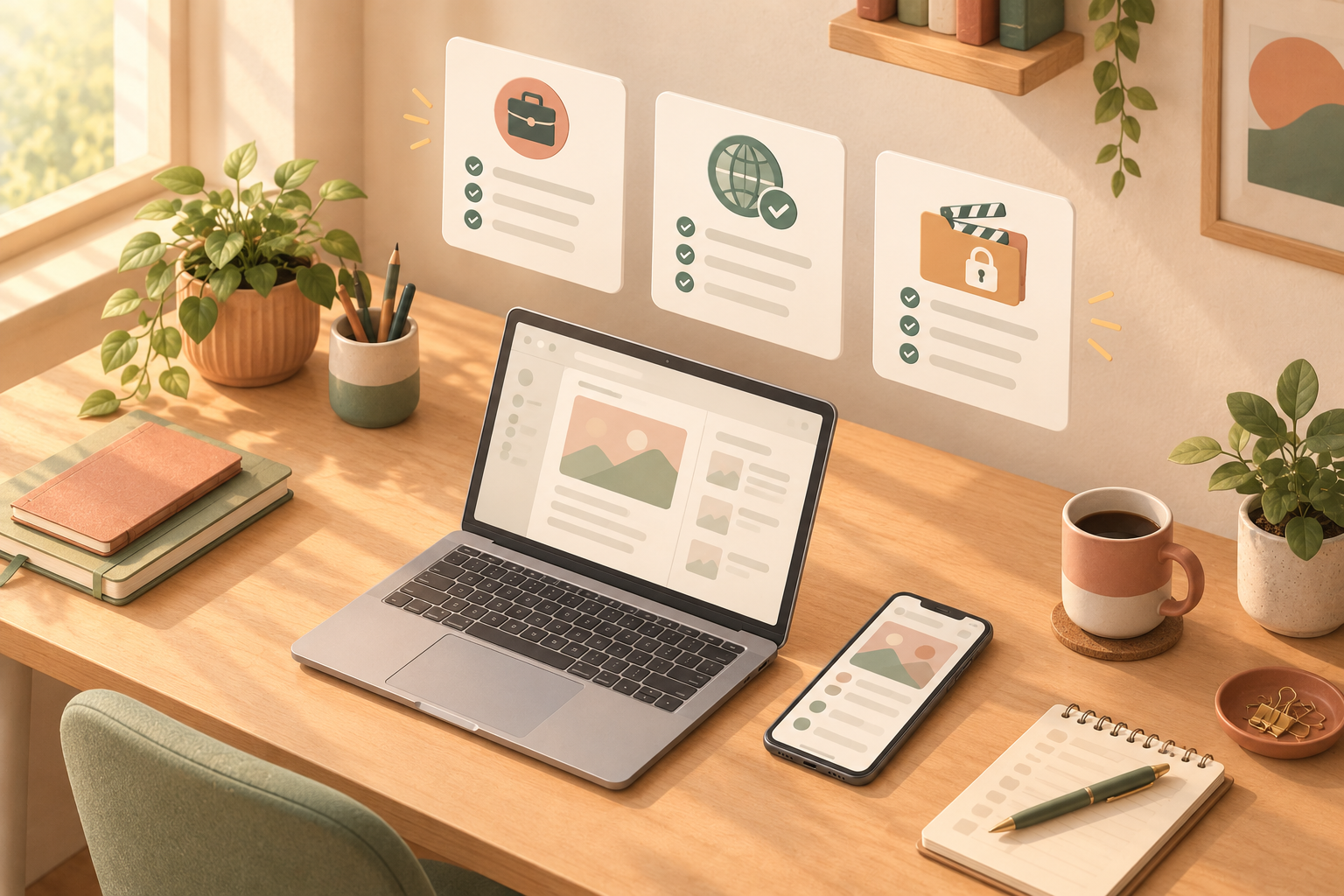
Skip this and you get the quiet failure: Pins with no attribution and no analytics.
Use a business account and claim your Instagram
Linking your Instagram account attributes that content to you on Pinterest, and Pin stats need a business account (internal link: switch to a business account). One catch: Instagram claiming isn’t available in every region, so check yours before you plan around auto-publish.
Claim your website
Your Pin’s link should point to your own site, not your Instagram profile. Claiming the domain in your Pinterest settings is how you tie that traffic back to your profile, so do it before you start adding links.
Keep an unpublished master file
This is the habit that saves everything else. Simple Pin Media recommends saving the raw video before Instagram captions, music or stickers go on. Why? Because the version Instagram gives back to you is often worse than the one you made. If you’ve never kept masters, it’s worth building a simple backup routine for your Instagram content now, before you need it.
Which Instagram Reels Are Worth Repurposing to Pinterest? A Quick Filter
Not every Reel earns a second life. Run each one through this first.
| Reel type | Move it? | What to change |
|---|---|---|
| Tutorial, recipe, how-to, before/after | Yes, first | Add a searchable title and step text on screen |
| Product demo or styling idea | Yes | Link to the product page, not your Instagram |
| Talking head with tips | Yes, with work | Burn in captions; some people watch with sound off |
| Trend audio, meme, lip-sync | Usually no | The joke depends on Instagram context and a licensed song |
| Behind-the-scenes, day-in-the-life | Test a few | Reframe around a searchable idea (“small studio setup”) |
Pinterest’s own creative guidance and community posts note that some Pinners watch without sound, which is why captions matter so much here.
My take on the trend-audio row: don’t bother. Strip the song and the context, and there’s usually nothing left that anyone would search for. The Reels that travel best are the ones where the value sits in the visuals and the steps, not the soundtrack. If a viewer could follow it on mute and still learn something, it’s a Pinterest candidate. If the punchline lives in the audio, leave it on Instagram.
Method 1: Auto-Publish Instagram to Pinterest From Your Claimed Account

Auto-publish is enabled when you link your Instagram account, and each new Instagram post becomes a Pin. According to Pinterest Help, you can import posts from the last 90, 180 or 365 days and exclude posts by word, phrase or hashtag. All auto-published posts land on one Pinterest board. (Pinterest’s older Create blog post mentioned 90 days only. Go with the Help Center.) Heather Farris reports that imports arrive without the Instagram watermark, which is worth confirming with a single test post of your own.
Here’s the verdict. Auto-publish is a good floor and a weak ceiling. You get zero-effort, consistent posting, but everything goes to one board, your Instagram caption becomes the description, and you can’t set a custom cover or link per Pin. Sarah Burk’s view is fair: it won’t hurt your account, but it leaves potential on the table.
So do both. Claim and auto-publish to a catch-all board, then manually re-publish your best performers using Method 2.
Method 2: Upload Manually and Optimize Each Pin
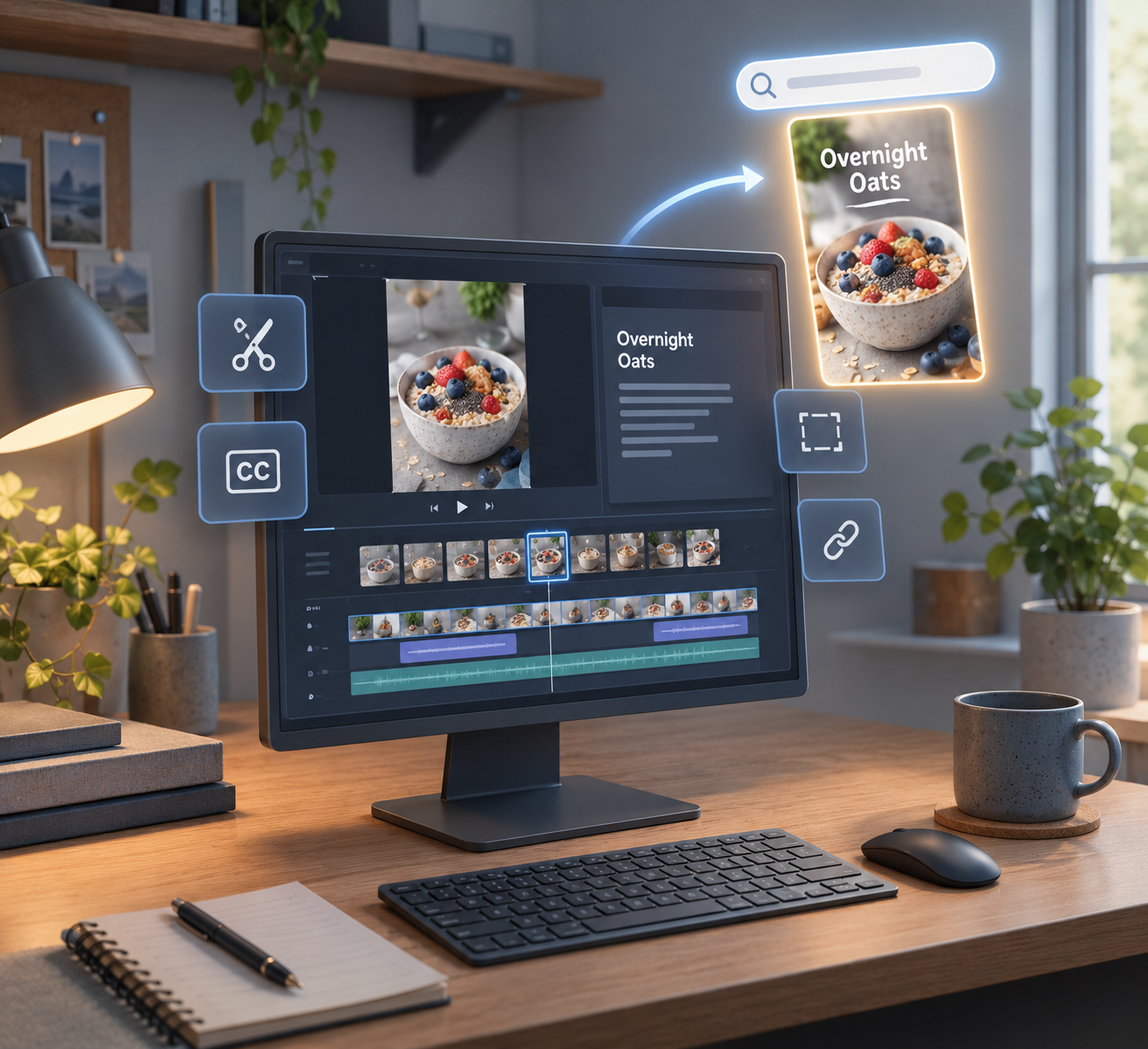
This is where the real gains are. Five steps.
Step 1: Get a clean file
Your master file is always the first choice. But plenty of creators don’t have one. Maybe the Reel was edited inside Instagram, or the original lives on a phone you replaced last year. So what do you do then?
Instagram’s own download won’t help much. According to RouteNote and Nerds Chalk, it adds a watermark with your username, and Reels that use licensed library music download silent. Screen recording is worse, since it captures the interface and drops quality.
That’s the gap a dedicated downloader fills. GramFetchr’s Instagram Reels Downloader pulls the original MP4 of a public Reel in the highest quality available, with no watermark and no Instagram login. You copy the Reel link, paste it in, and save the file. It runs in the browser, so it works the same on iPhone, Android or desktop, which matters when your Reels live on your phone but your Pinterest workflow lives on your laptop.
Two honest caveats. First, if your Reel used licensed Instagram music, the file may still come down without sound, because that’s a limit on Instagram’s side, not the tool’s. Here’s why downloaded Reels sometimes have no sound. For those, re-add music from a library you’re licensed to use, or lean on burned-in captions. Second, it only works on public accounts, so switch a private account to public briefly if you need to pull your own Reels.
And stick to your own content, or content you have permission to repost. Downloading doesn’t transfer ownership, and Pinterest is not the place to republish someone else’s video.
Length is rarely an issue. Reels top out at 3 minutes (Lindsey Gamble, covering Adam Mosseri’s January 2025 announcement), and organic video Pins allow 4 seconds to 5 minutes. If a long Reel needs tightening, trimming downloaded Instagram videos for other apps takes a few minutes in any basic editor.
Step 2: Re-edit for a silent, search-first viewer
Three edits do most of the work.
- Lead with the payoff. Pinterest’s best-practice guidance advises a clear hook up front. Show the finished overnight oats in second one, not second twelve.
- Burn in captions or add a text overlay. If you’re short on time, you can auto-caption downloaded Instagram videos with AI and then fix the errors by hand.
- Respect the safe zones. On a 1080×1920 frame, keep text out of the top 270 px, left 65 px, right 195 px and bottom 790 px, per Pinterest’s spec page.
That last one catches people. Text placed low in an Instagram frame, which is where most of us put captions, often lands right inside Pinterest’s bottom 790 px. Move it up toward the middle third and you’re usually safe on both platforms. Your Reel’s aspect ratio is already 9:16, so the frame itself rarely needs resizing.
Step 3: Choose a cover that works as a still
The cover is what people see before anything plays. Pinterest has recommended picking one that lets people grasp the video at a glance. My rule: show the finished result, then add three to six words of overlay. “Overnight Oats, 5 Minutes” beats a blurry mid-stir frame every time.
If you designed a good cover for the Reel, reuse it. The GramFetchr Thumbnail Downloader saves a Reel’s cover image so you can adjust the text and upload it as your Pin cover. For a sharper version, see how to enhance downloaded Reel thumbnails with AI tools.
Step 4: Rewrite the title, description and link for search
Pinterest’s limits are 100 characters for the title and up to 800 for the description. Some guides still say 500. They’re wrong. Descriptions don’t show in the feed, but Pinterest uses them to judge relevance, so treat them as search copy.
Here’s the difference in practice.
Instagram caption: “Mornings just got easier 🙌 recipe in my bio! #breakfast #mealprep #healthyeating”
Pin title: 5-Minute Overnight Oats for Busy Mornings
Pin description: Easy overnight oats you can prep in five minutes the night before. Make-ahead breakfast with oats, milk, chia and fruit, plus three topping ideas for busy weekday mornings.
Build that around a phrase you’ve checked in Pinterest Trends (internal link: find Pinterest keywords). Add your blog post or product page as the destination link, and pick a specific board like “Make-Ahead Breakfasts” rather than a generic “Recipes” catch-all (internal link: pick a specific board).
Step 5: Publish, schedule or bulk upload
You can publish now, use the native scheduler, or bulk-create Pins from a .csv file (Pinterest Help: Import content). Bulk upload pairs well with batch prep: if you’re moving a dozen Reels at once, it helps to download your Instagram content in bulk for planning first. Some older Pinterest guidance says video Pins may go through a review after upload, so don’t panic if one takes a little while to appear.
Video Pin Specs at a Glance
As of October 2026, from Pinterest Help: Review Pin specs:
| Spec | Organic video Pin |
|---|---|
| File type | .MP4 or .M4V on web; .MOV also on the app |
| Encoding | H.264 or H.265 |
| Length | 4 seconds to 5 minutes |
| Aspect ratio | 9:16 at 1080×1920 recommended (1:2, 2:3, 3:4, 4:5, 1:1 also work) |
| Safe zones | Top 270 px, left 65 px, right 195 px, bottom 790 px |
| Title | 100 characters |
| Description | 800 characters |
The 15-minute and 2 GB figures floating around belong to Pinterest’s ad product specs, not organic Pins.
Mistakes That Quietly Cap Your Reach
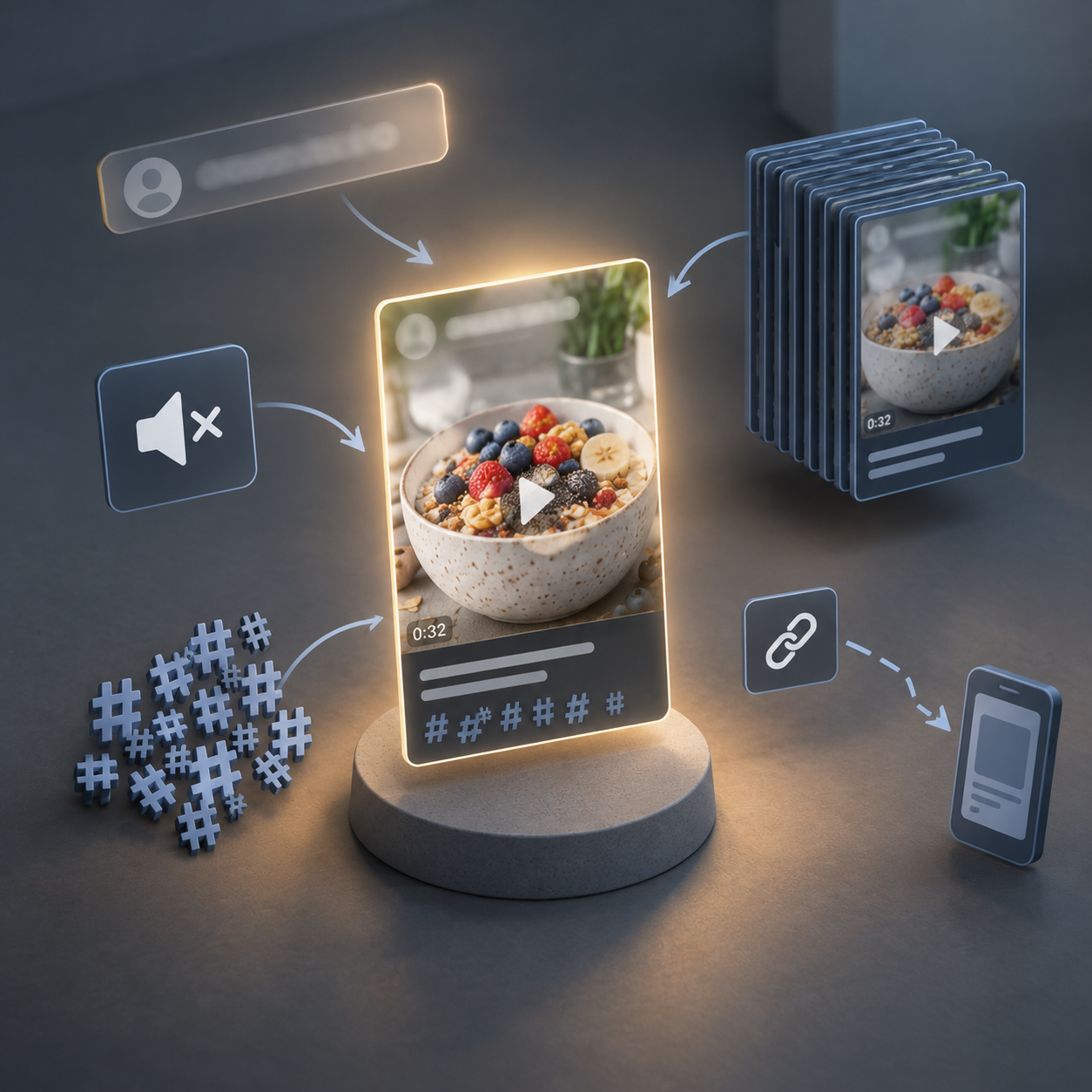
Uploading the watermarked download. You’ll see claims that Pinterest “penalizes” watermarked video. No Pinterest source says so. The better argument is quality: a username stamped on the frame sends viewers back to another app. Instagram itself stopped recommending watermarked clips from other platforms back in 2021 (RouteNote), which tells you how platforms feel about it. A clean MP4 from your editor or a watermark-free Reels download fixes this in under a minute.
Silent videos. If your Reel used library music, the download comes out mute. Export from your editor, or swap in audio you’re licensed to use.
Pasting your Instagram caption as-is. Hashtag blocks and “link in bio” mean nothing on a Pin that already has a link.
Saving the same video to lots of boards in quick succession. Pinterest has described repetitive saving as spam-like, as quoted by Craft Professional. Space it out.
Linking to your Instagram profile. Send people to your own site. That’s the whole point of the link field.
How to Tell If It’s Working (First 30 Days)
In Pinterest Analytics (internal link: read your Pin stats), watch impressions, saves, outbound clicks and video views or watch time. Metric labels shift between interface versions, so match them to what you see in your own dashboard.
Then run a simple test. Port 10 Reels: auto-publish five, manually optimize five. Compare saves and outbound clicks at day 30. A tracking sheet this simple is enough:
| Reel | Method | Impressions (day 30) | Saves | Outbound clicks | Day 90 check |
|---|---|---|---|---|---|
| Overnight oats | Manual | ||||
| Studio setup | Auto-publish |
Saves are the number I’d watch most closely early on. Impressions can spike and fade, but a save means someone wanted to come back, and that’s the behavior that keeps a Pin alive in search.
And be patient. Pinterest is slower than Instagram. Judge at 30 and 90 days, not 48 hours.
Tools That Help (and When You Don’t Need Them)
You need less than you’d think. Pinterest’s native scheduler and bulk upload cover publishing. For re-edits, CapCut, Canva or Premiere is plenty. Schedulers that post to both platforms earn their keep mainly for teams juggling several accounts.
The one gap most creators hit is the source file. If you kept your masters, you’re set. If you didn’t, GramFetchr gets your public Reels back as clean MP4s without a login, and its thumbnail downloader handles covers.
Pick your five most evergreen Reels this week and run them through the filter. If Pinterest is only one stop on your plan, the same files can also go to YouTube Shorts and TikTok as part of a wider repurposing workflow.